
Save podcast screenshots and listen later
You screenshot an episode to listen to it later: omemo recognizes the show, brings back the episode details and gives you a link that plays it in your podcast app.
Show
The New Yorker Radio Hour
Episode
Jon Lovett Answers Your Questions. Plus, Jessica Tarlov, Fox News' Lonely Liberal
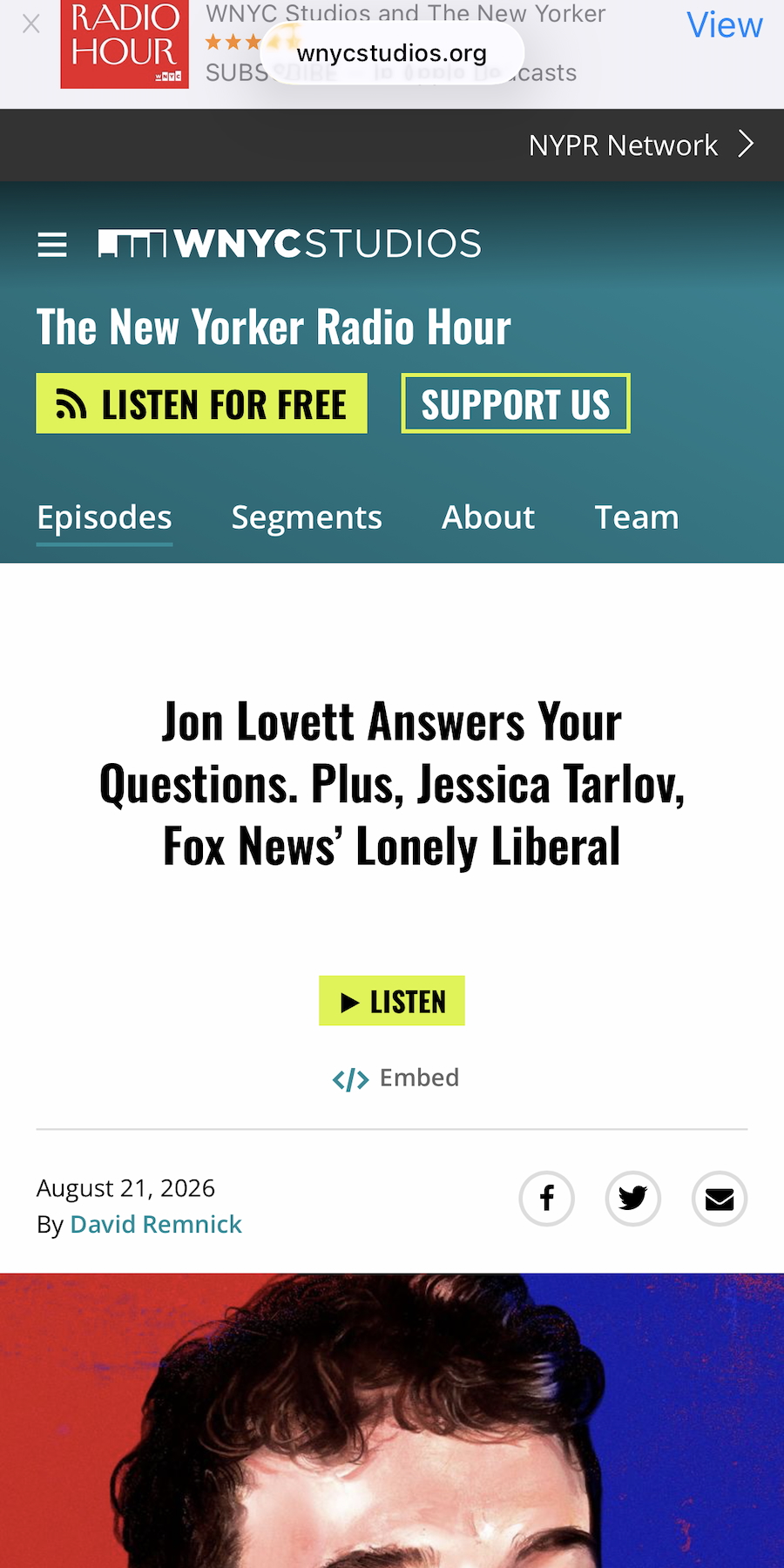
- 01omemo tells an episode apart from a whole show, so the card is about exactly what you screenshotted.
- 02Show name, host, episode title, duration and publication date come back on their own.
- 03Cover art is attached, so the episode is instantly recognizable in your list.
- 04A short description reminds you what the episode is about, weeks after you saved it.
- 05omemo finds the episode in the app you actually use — Apple Podcasts, Spotify or the web — and links straight to it.

That episode recommendation is a picture now.
Someone mentions an episode — at dinner, in a meeting, in another podcast — and you screenshot it so you'll listen later.
Later, you're holding cover art with no play button, trying to remember the show's name well enough to search for it.
From a screenshot to the episode, ready to play
omemo tells an episode apart from a whole show on its own, so the card is about exactly what you meant to save.
It reads the show and episode from the shot, then completes the card from live podcast directories: host, publisher, duration, publication date and a description of the episode.
The cover art comes along, so the episode is recognizable at a glance weeks after you saved it.
And one link opens the episode in your podcast app — Apple Podcasts or Spotify — so listening later actually happens.
Podcast screenshots, answered.
Have hundreds of screenshots, not just podcast ones?
See how omemo works as an automatic screenshot organizer for iPhone.
Related guide: How to find where a screenshot came from and get back to what you saved
Other screenshots people save