
Find the music behind your screenshots
You screenshot a song or album: omemo identifies the track and gives you back the artist, album, artwork and a link that plays it in the app you already use.

Duration
5:03
Released
2024-05-17
Album
HIT ME HARD AND SOFT
Label
Darkroom Records
Producer
FINNEAS
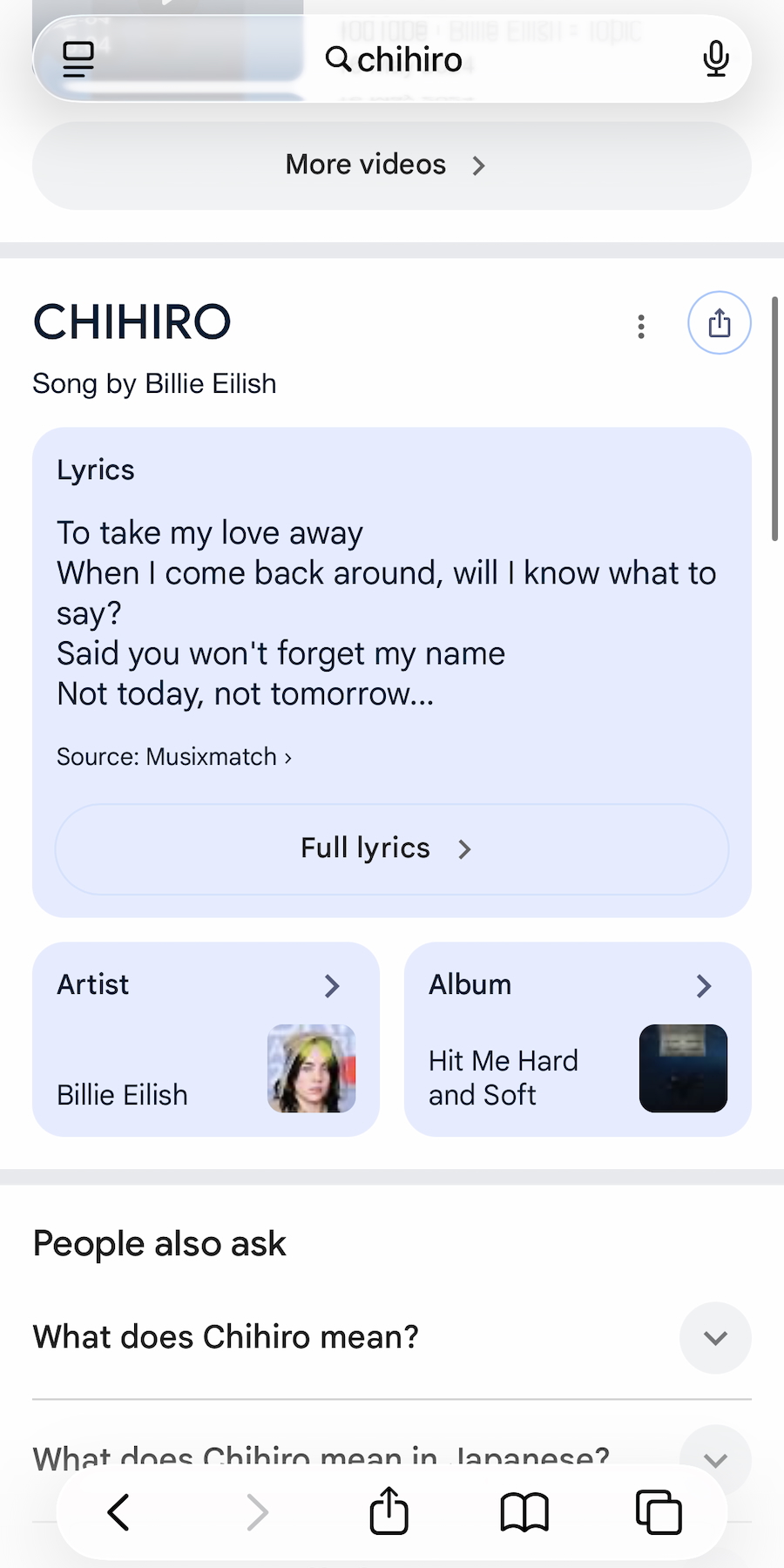
- 01Whether the screenshot is a now-playing track or an album cover, omemo knows which is which.
- 02Artist, track, album, genre, duration and release date come back automatically — even if the screenshot only shows a small player.
- 03Album artwork and artist photos are attached so the card is instantly recognizable.
- 04omemo finds the right streaming link for you: Spotify if you use Spotify, Apple Music if you use Apple Music, YouTube Music if you use YouTube Music.
- 05Music screenshots are grouped into one collection, so you never have to scroll your camera roll to find that song again.

The song is still stuck in your head. The screenshot isn't helping.
You screenshot a now-playing screen so you won't forget the track — in a bar, in a video, in someone else's story.
Weeks later it's a tiny frozen player buried in your camera roll. The name is right there in the image, and you still can't press play on a picture.
From a frozen player to a play button
omemo reads the artist, the track or album, the genre, the duration and the release date straight from the screenshot — even when it only shows a small now-playing bar.
It tells a track apart from an album on its own, so the card is about exactly what you were listening to.
Music databases fill in the rest: clean metadata and the real artwork, so the card is recognizable at a glance months later.
And the Listen button opens the song in the player you actually use — Apple Music, Spotify or YouTube Music — so hearing it again takes one tap.
Music screenshots, answered.
Have hundreds of screenshots, not just music ones?
See how omemo works as an automatic screenshot organizer for iPhone.
Related guide: How to find where a screenshot came from and get back to what you saved
Other screenshots people save